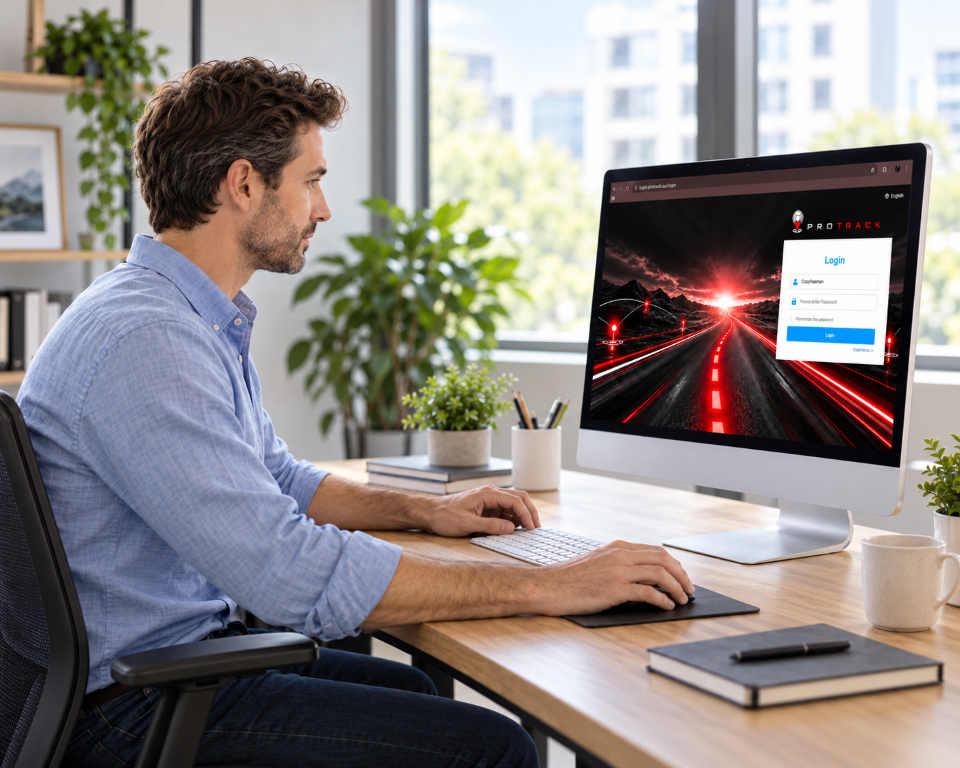
How do I log in on my computer?
Go to login.protrack.au in any web browser. Enter the username and password provided when your tracker was installed, then click Login. Tick ‘Remember the password’ so the site saves your details for next time.

Everything you need to know about using ProTrack on your computer or phone: logging in, the map, live tracking, trip history, alerts, your account and support.
01 · Logging In
Go to login.protrack.au in any web browser. Enter the username and password provided when your tracker was installed, then click Login. Tick ‘Remember the password’ so the site saves your details for next time.

Most people log in with the username and password provided when the tracker was installed. You can also use your full device IMEI number as your username, with the default password from your ProTrack User Guide. Your login is the same on the website and the app.

Yes. For security, you’ll be asked to create a new password the first time you log in to the ProTrack website or app. Keep it secure and don’t share it with anyone. To change it later, go to My → General → Change Password in the app.
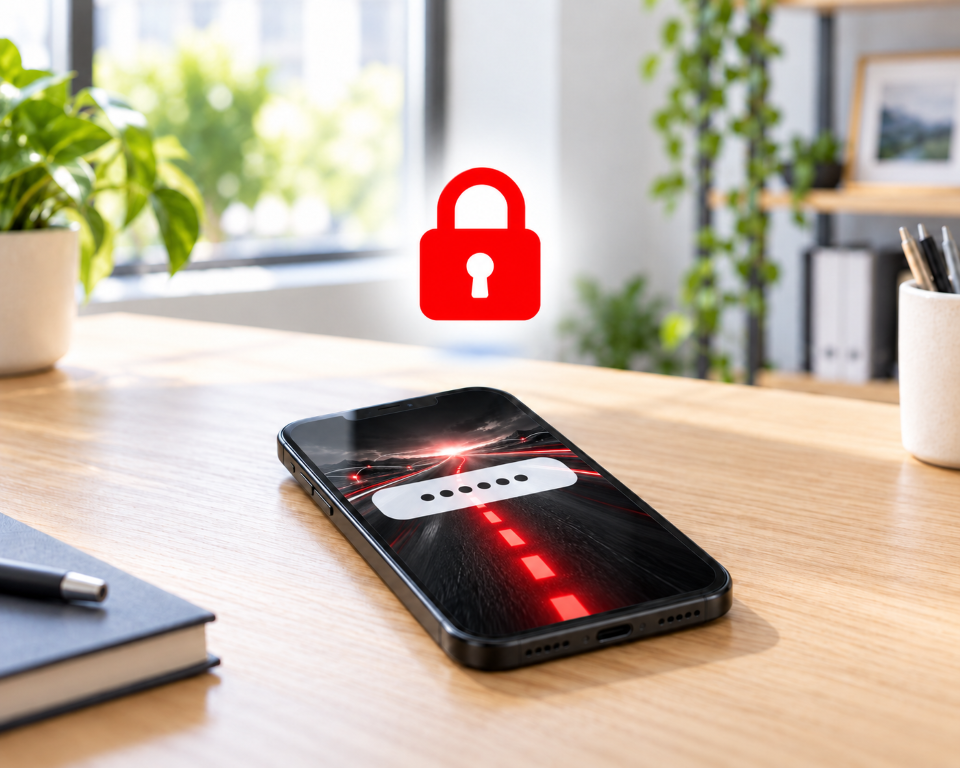
Contact ProTrack AU and we’ll help you reset it. Call 1800 733 809 or email support@protrack.au.

Yes. Your account works across all your devices at the same time, and the ProTrack AU app uses the same login as the website.
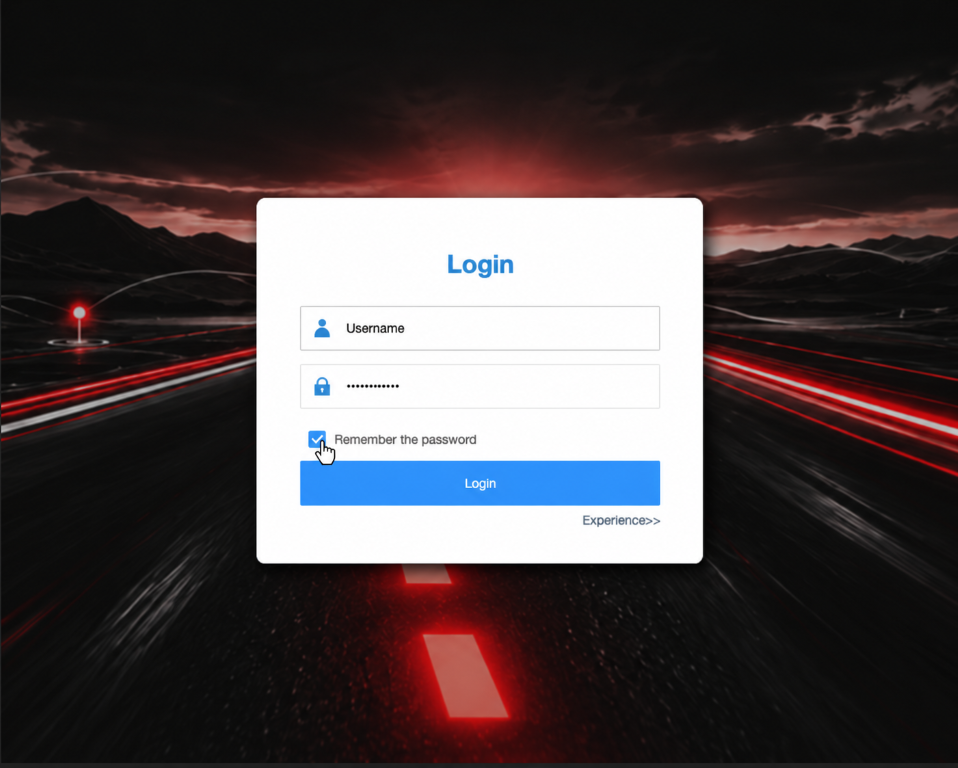
Tick ‘Remember the password’ when you log in, and bookmark login.protrack.au so you can find it quickly next time.
02 · Map & Vehicle Status
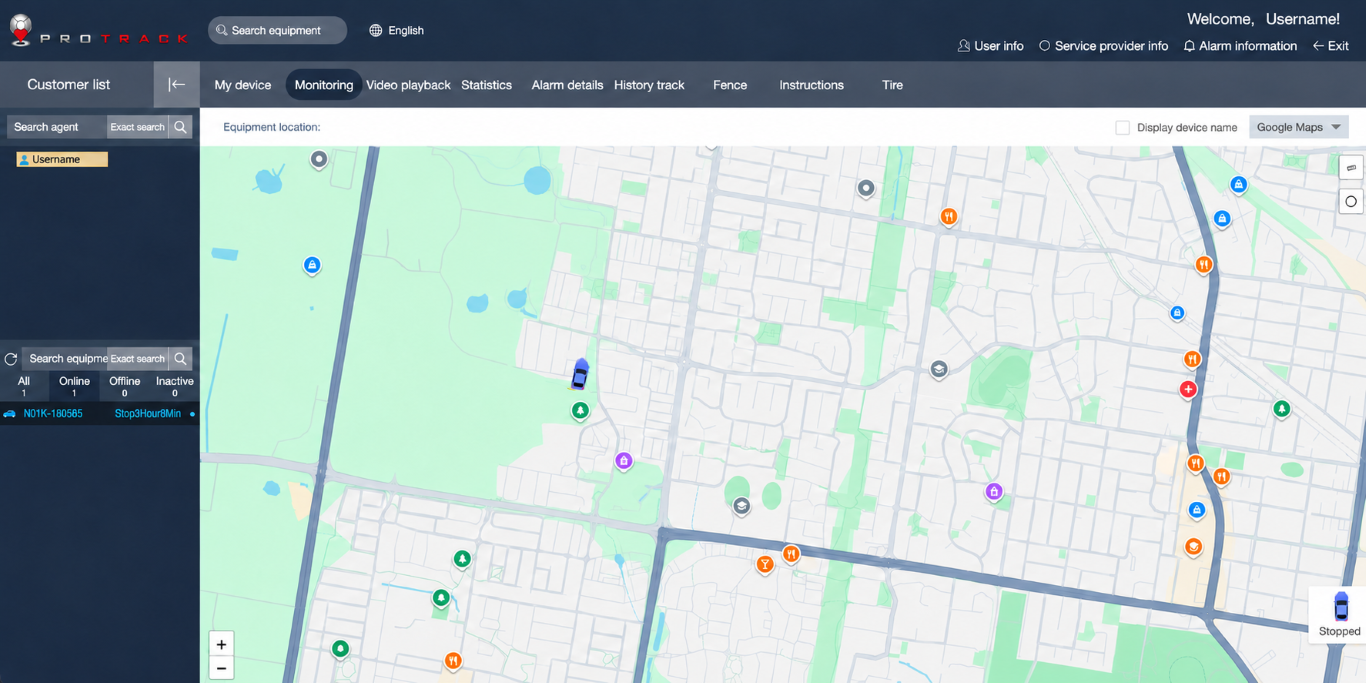
Log in and the map screen opens with your vehicle shown as a car icon. Green means moving, blue means stationary and grey means offline.
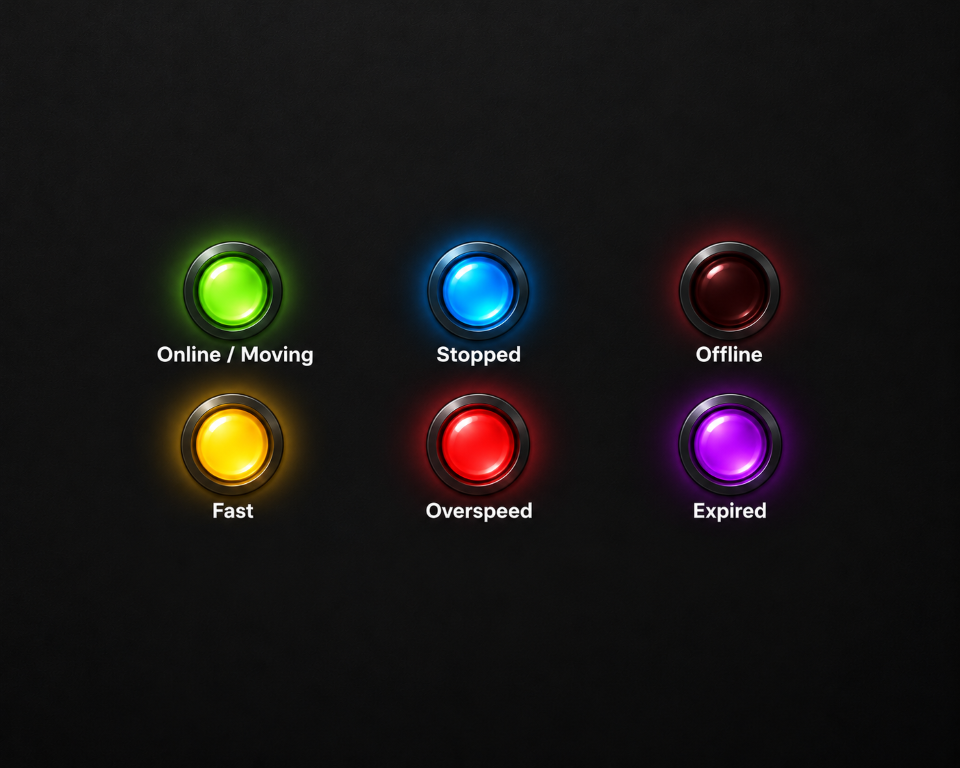
Online / Moving: the vehicle is moving. Stopped: stationary or parked, with the tracker still online. Offline: no signal. Fast: moving at an elevated speed. Overspeed: over the alert threshold. Expired: the subscription has expired.
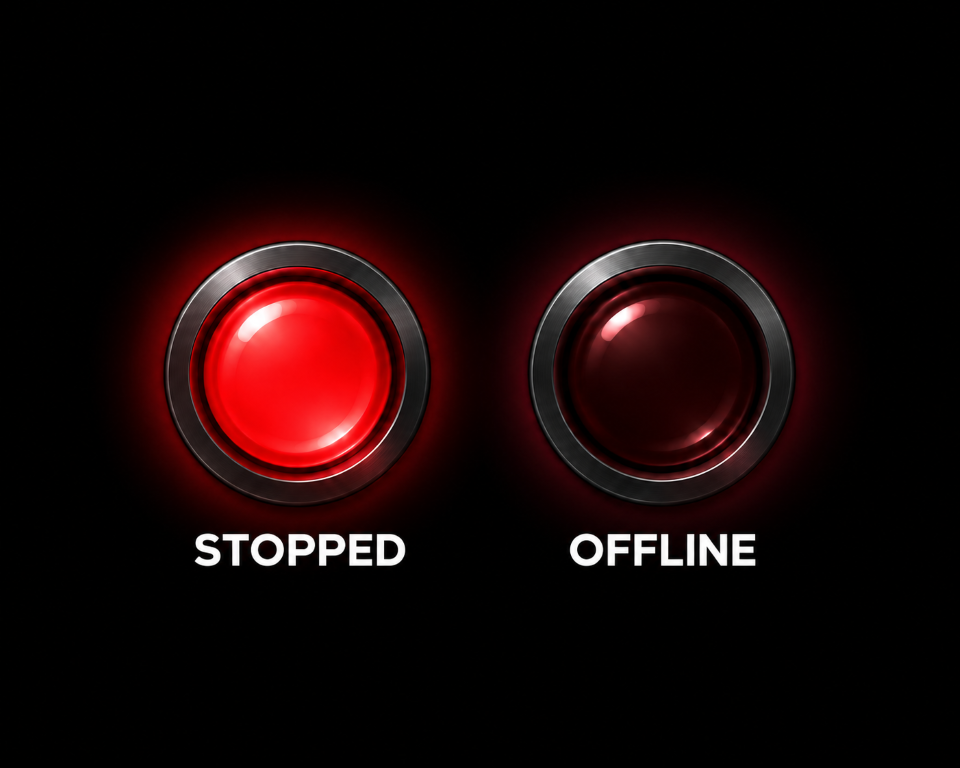
Stopped means the vehicle is parked but the tracker is working normally. Offline means the tracker can’t communicate right now, so no new data is coming through. The last reported location is still shown.
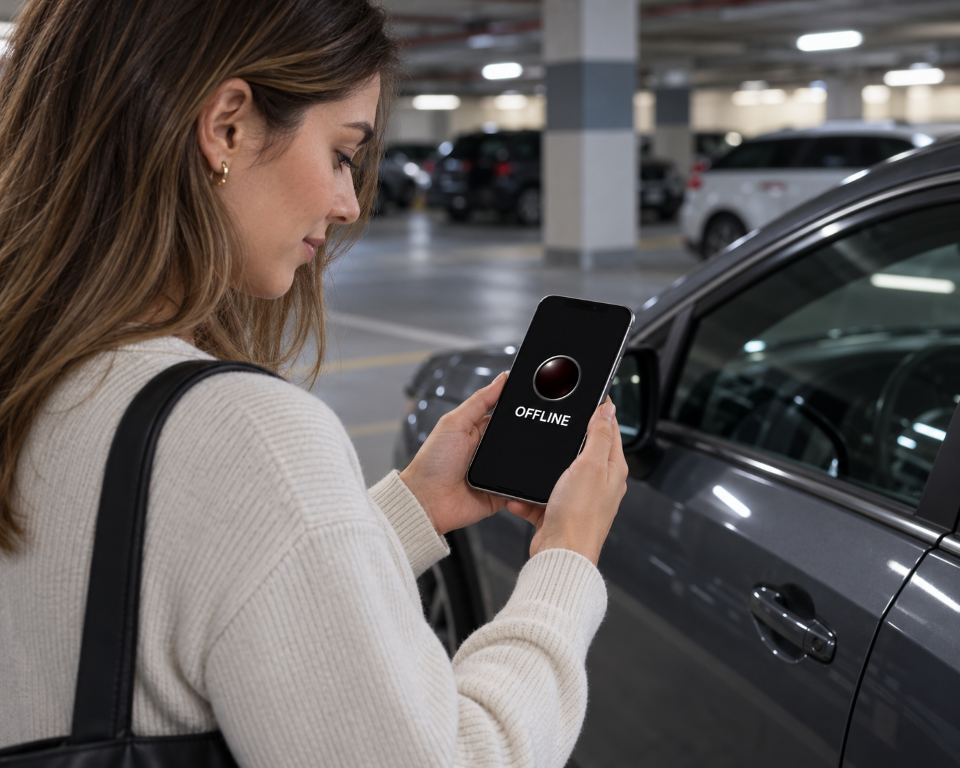
Not necessarily. Offline usually means the tracker has temporarily lost mobile coverage or entered a power-saving sleep mode. It’s common in underground car parks, remote areas or places with poor signal. The tracker will normally reconnect when coverage returns or the device wakes, provided it has power. If it stays Offline for an extended period, call 1800 733 809.
Press F5 on your computer, or pull down to refresh in the app. If that doesn’t help, log out and back in, then check the List tab for your vehicle’s status. Still missing? Call 1800 733 809 and we’ll help you troubleshoot.
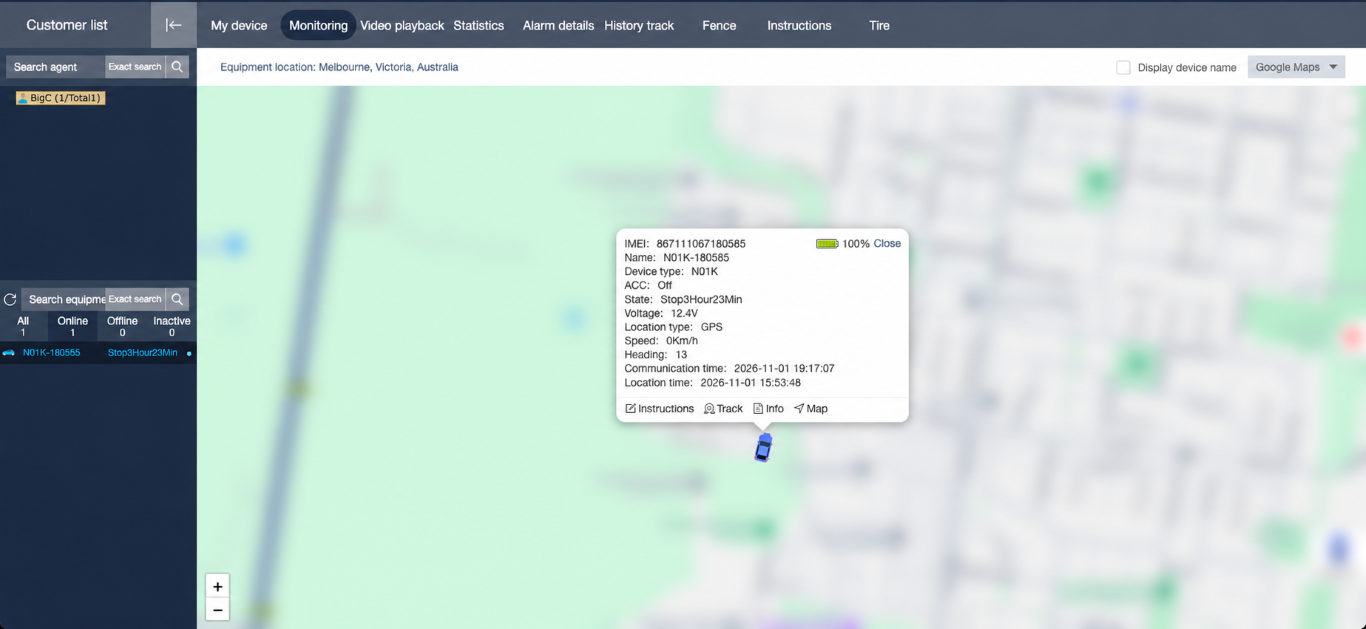
Click or tap the vehicle icon on the map. A popup shows speed, ignition status and the last update time.
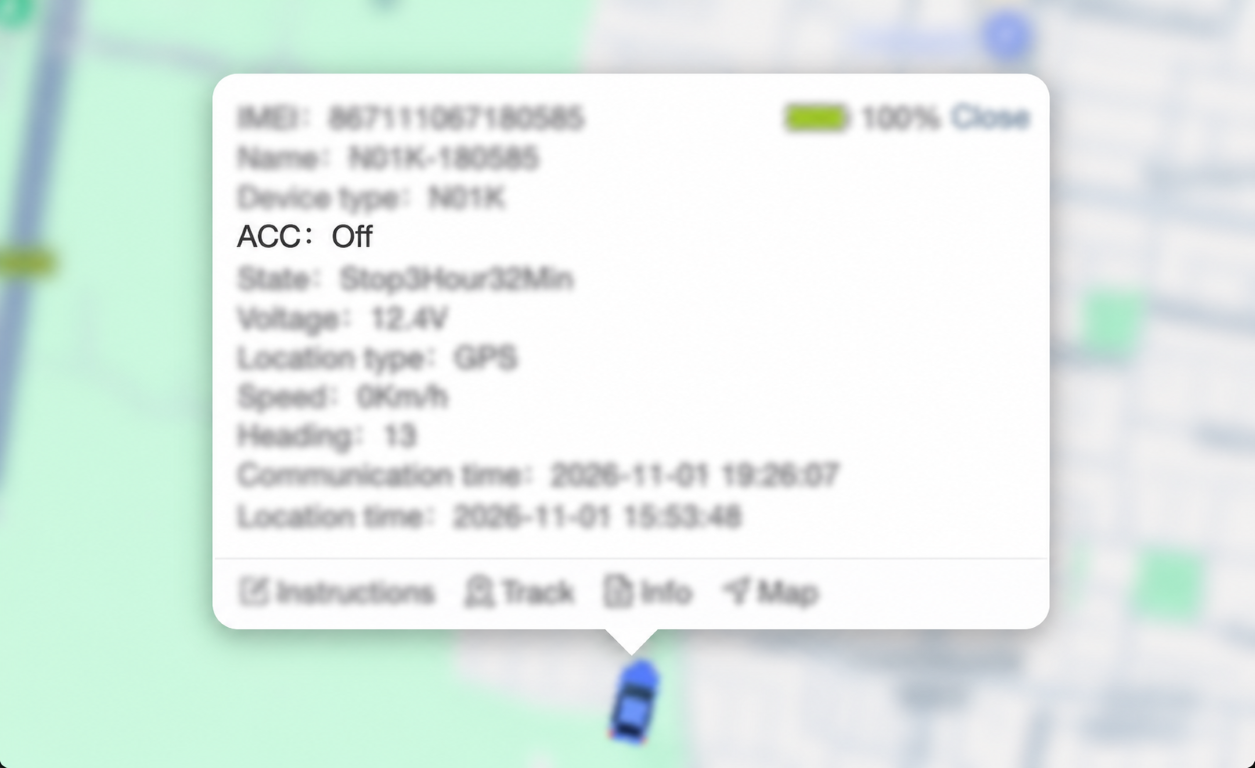
ACC: Off means the tracker is detecting the vehicle’s ignition or accessory input as off. You can still see the vehicle’s last reported location on the map.
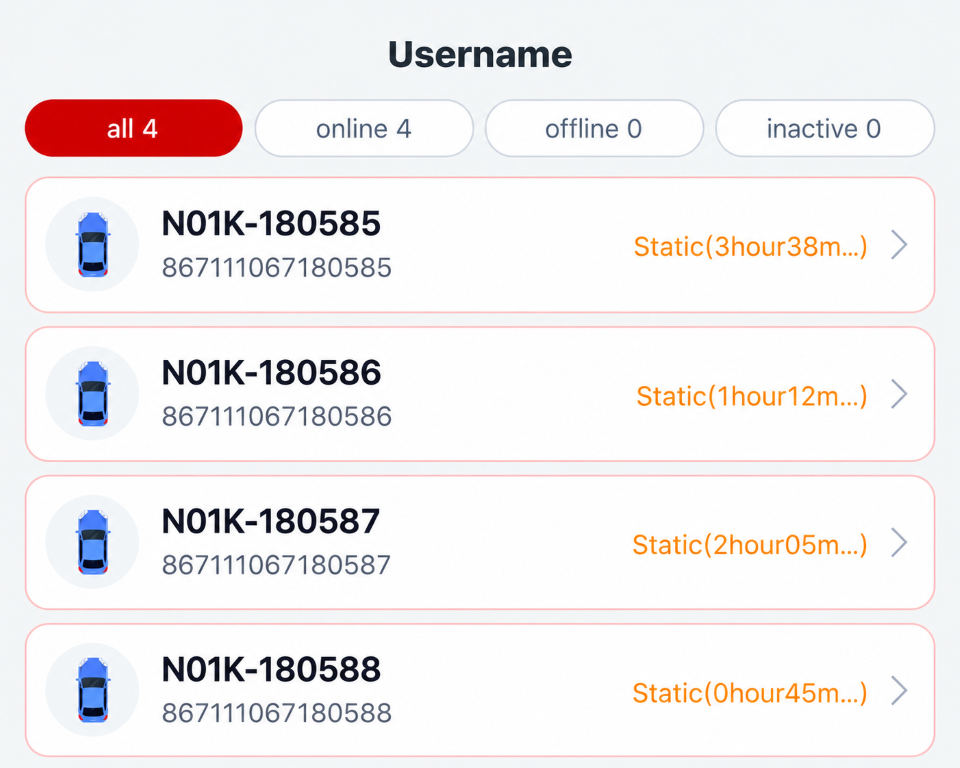
Use the search bar at the top of the screen and type the vehicle name. In the app, the List tab shows every vehicle with counts for all, online, offline and inactive.
03 · Live Tracking & Trip History
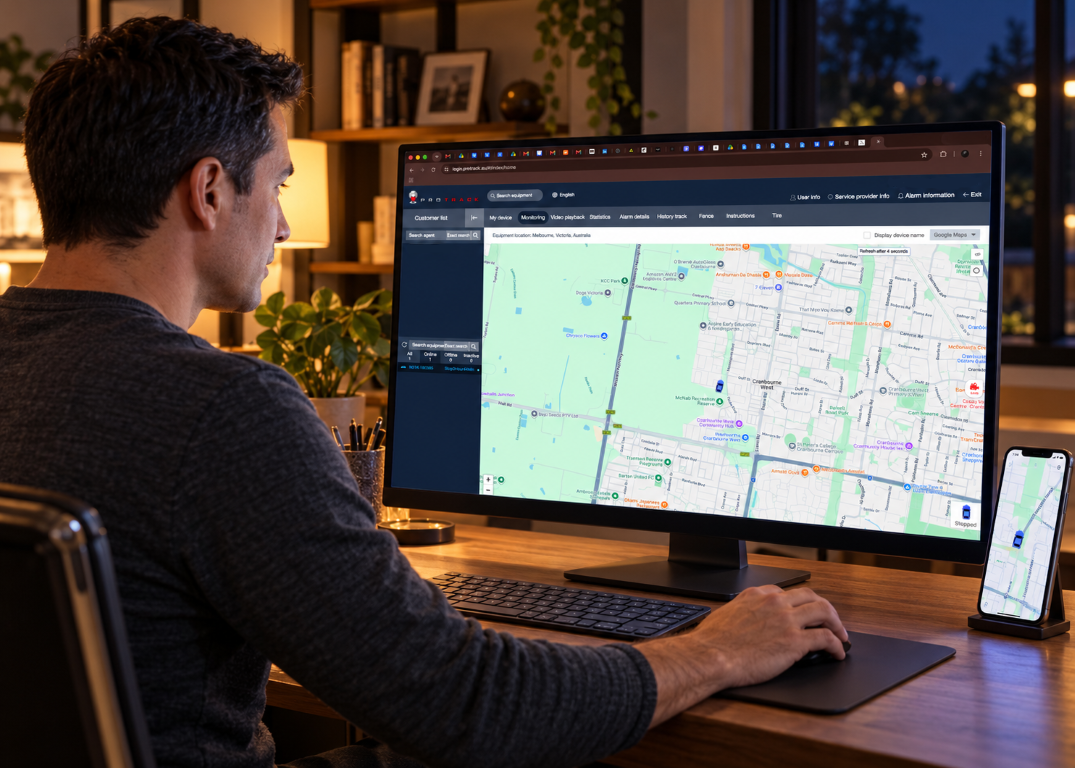
On the website, click your vehicle on the map, then click Track in the popup. The map centres on the vehicle and follows it. Click elsewhere on the map to stop. In the app, tap your vehicle, then tap Track or Positioning. Tap Back or X to stop.
The monitoring screen refreshes automatically, and the Positioning view in the app refreshes every 10 seconds. Update frequency depends on the device’s reporting interval, GPS availability and mobile network conditions. With good signal, updates typically appear within seconds. Where coverage is poor, they may run a few seconds behind.
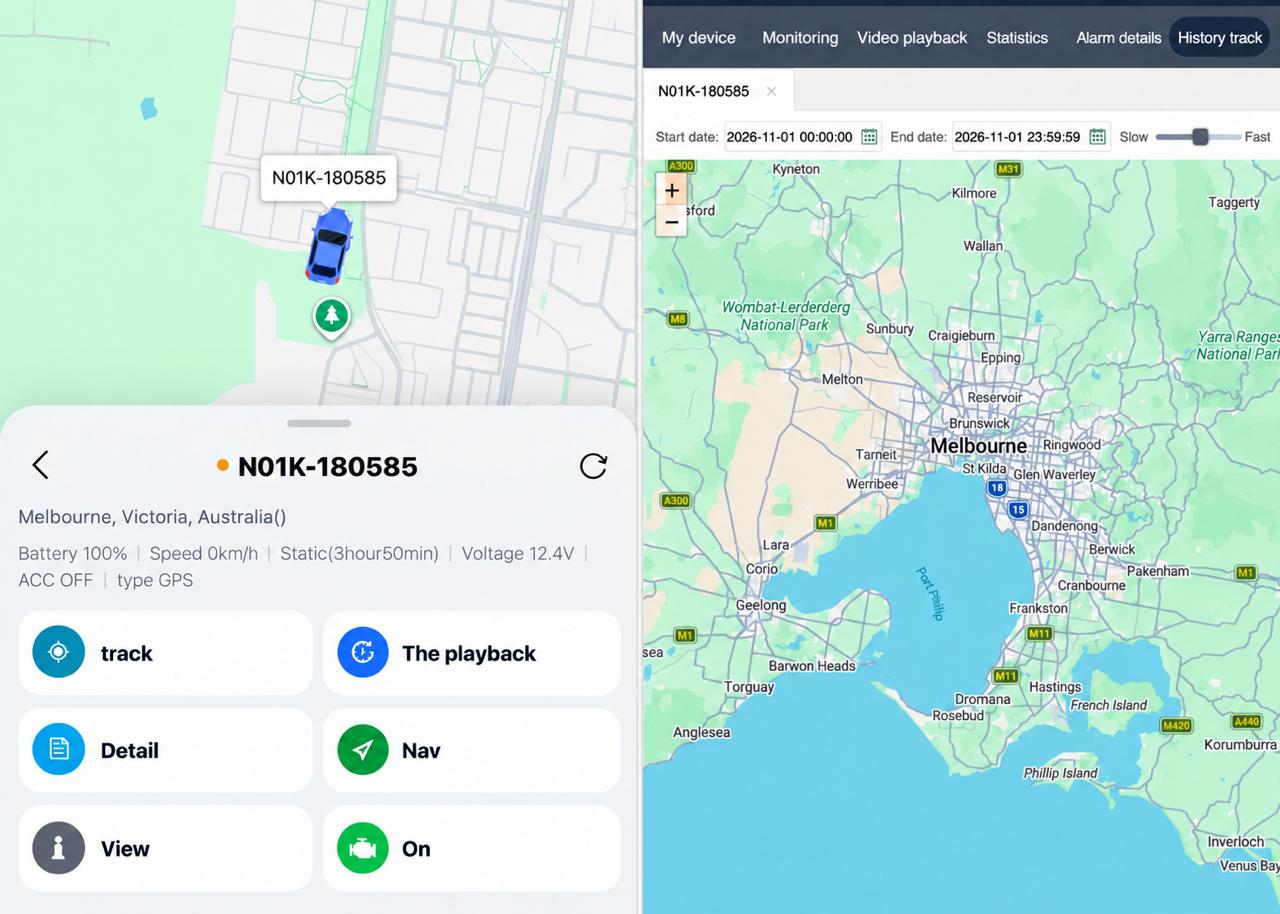
On desktop, click History track in the top menu, select your vehicle, choose a start and end time, click Search, then press Play. Drag the slider to jump to any point. In the app, tap your vehicle, tap the clock icon, pick your date and time range and tap Play.
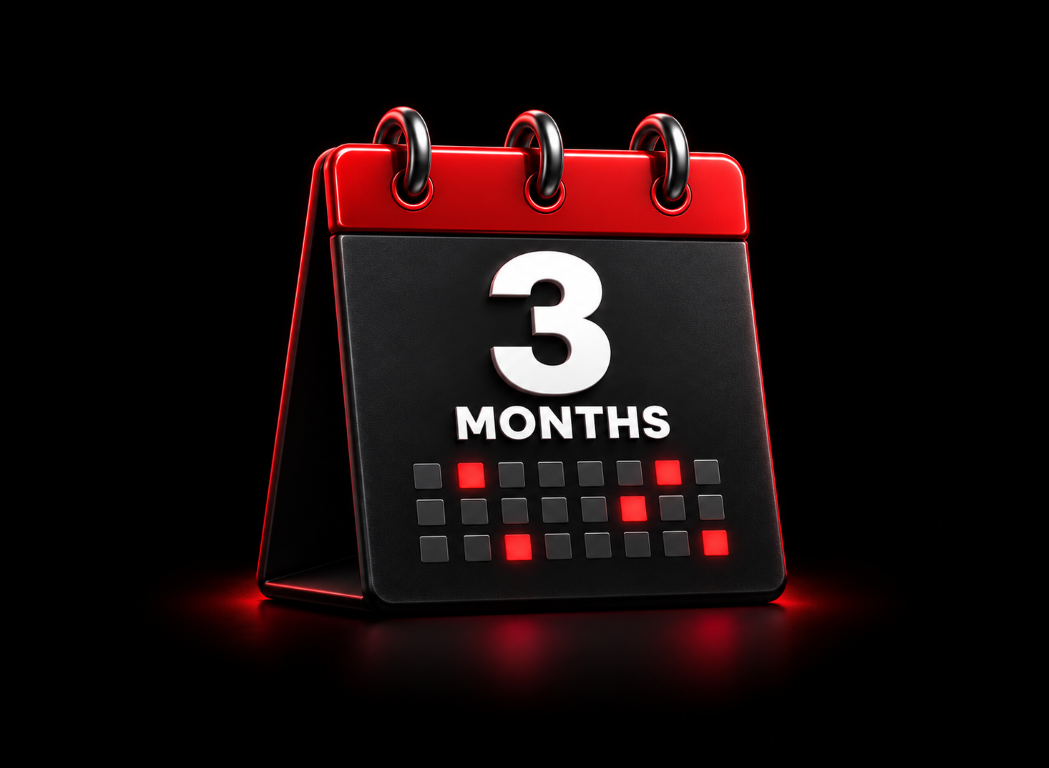
Trip history is kept for up to 3 months. Data older than 3 months can’t be viewed.

History only covers the past 3 months. Double-check your date, time range and AM/PM setting, and make sure you’ve selected the right vehicle. You can also try selecting GPS as the positioning type when searching.
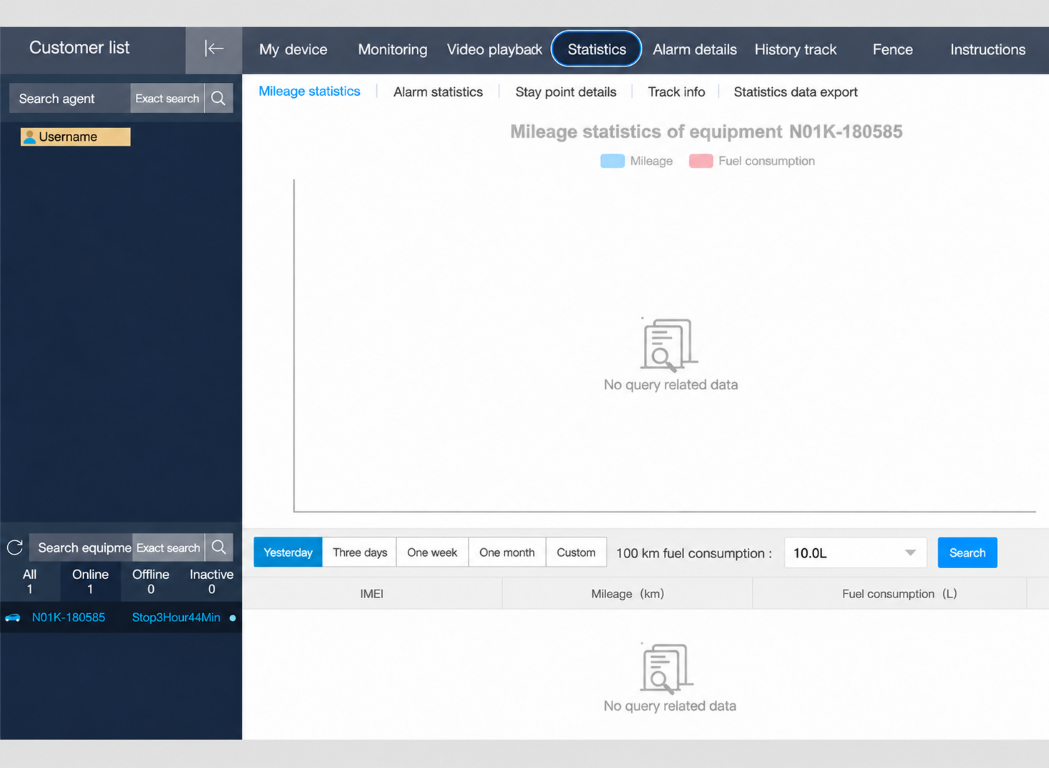
Yes. From the Vehicle List, tap your vehicle, then tap Mileage statistics to see distance travelled and estimated fuel consumption over a selected period.
04 · Alerts

Speeding, leaving or entering an area, engine on or off, power interrupted, vehicle went offline, low battery, SOS and vibration alarm. Available alerts depend on your tracker model, device settings and account configuration.
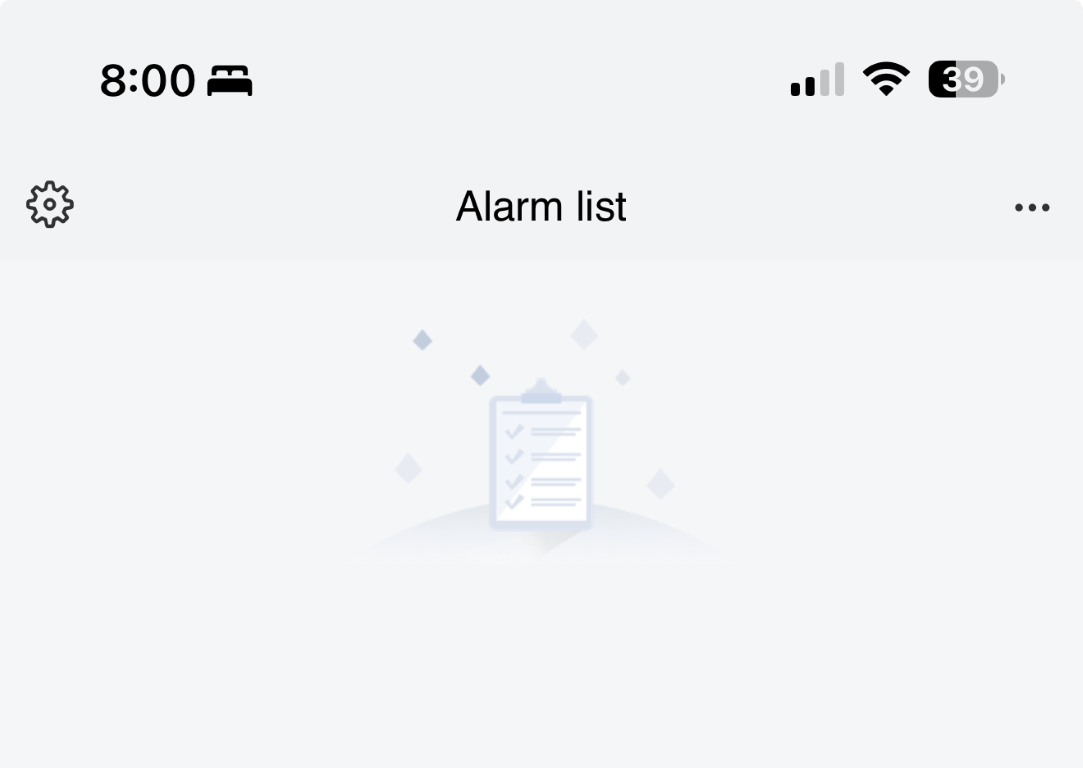
Under Alarm details in the top menu on the website, or in the Alarms tab in the app.
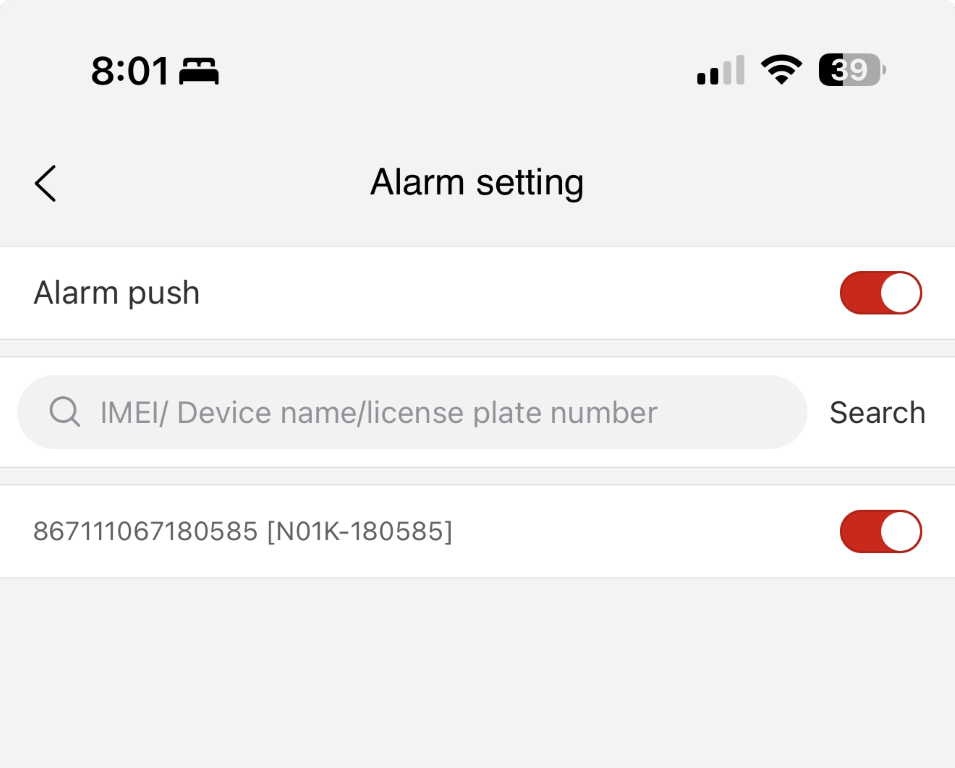
In the app, tap the My tab (bottom right), then Alarm push. Make sure the main Alarm push toggle at the top is on, then turn individual vehicles on or off as needed.
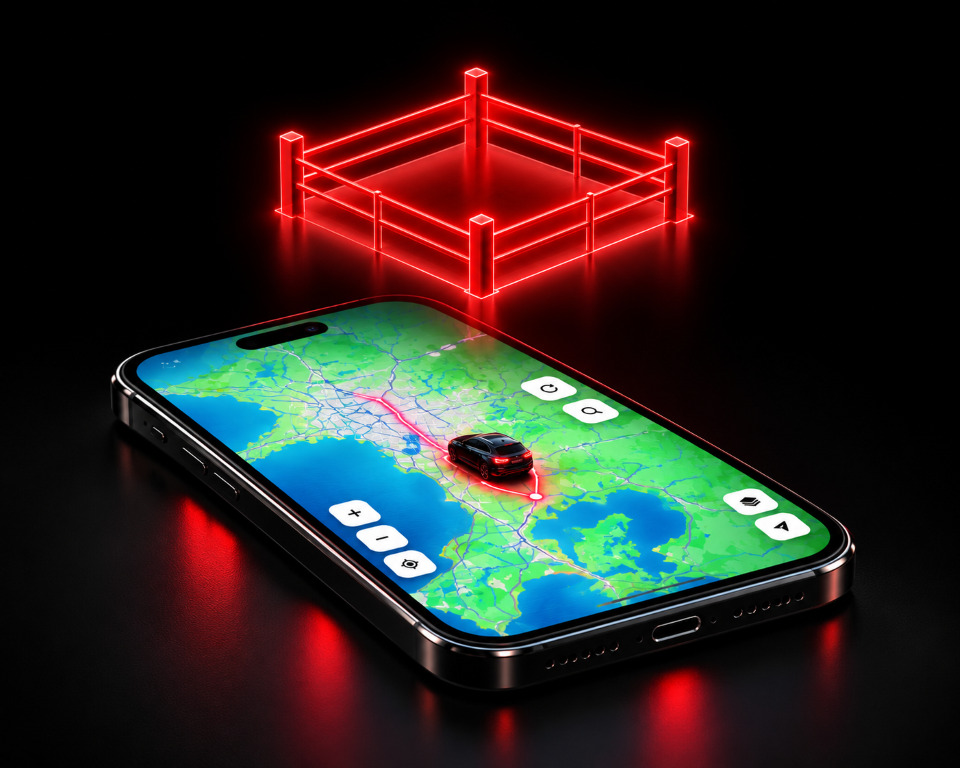
In the app, tap My → Fence → Add and draw the area on the map. Geofence alerts let you know when your vehicle enters or leaves that area. Need help configuring alerts? Email support@protrack.au.
05 · App & Account
Download ProTrack AU from the App Store or Google Play, or scan the QR code on login.protrack.au. The app works on iPhone and Android (version 9.0 or later) and uses the same login as the website.
Check for updates in the App Store or Google Play and make sure your phone has internet access. Close the app completely and reopen it, or try uninstalling and reinstalling it. Still not working? Call 1800 733 809 or email support@protrack.au.
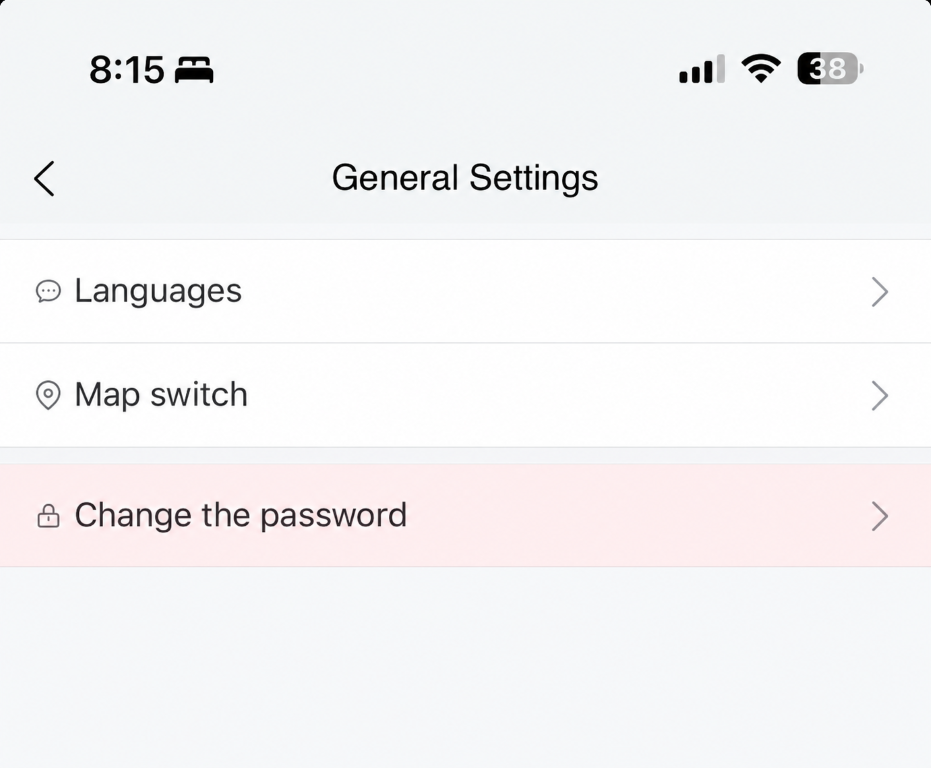
Tap My → General → Change Password. Enter your old password, then your new password twice, and tap Submit. Forgotten your password? Call 1800 733 809 or email support@protrack.au.
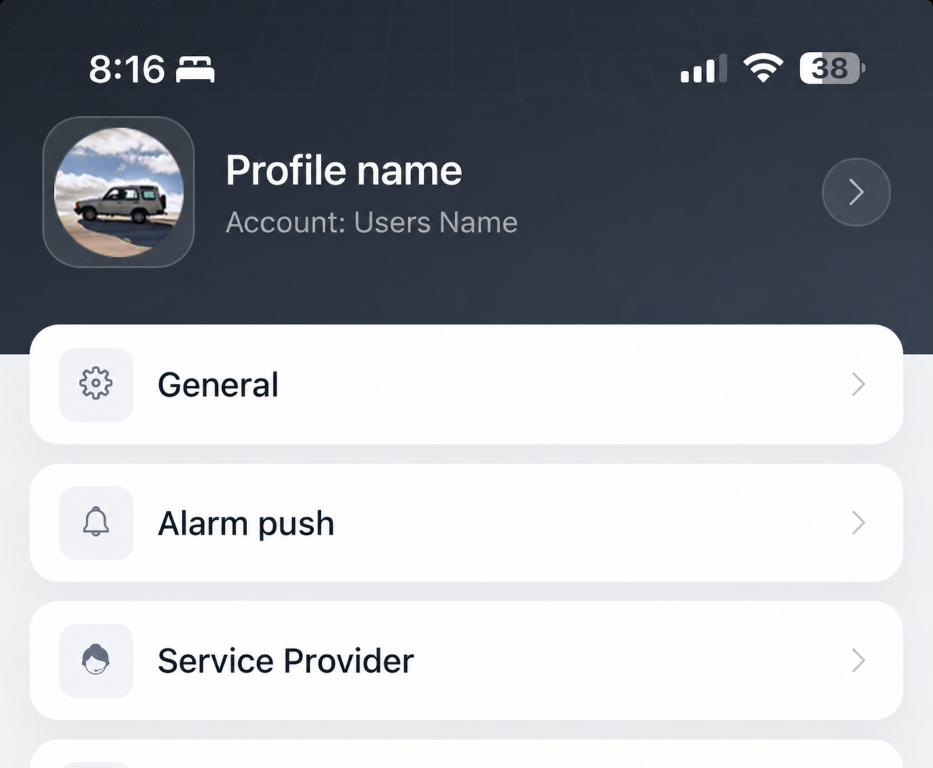
Tap My, then tap your personal information bar at the top. You can edit your username, nickname, contact details, phone number and address.
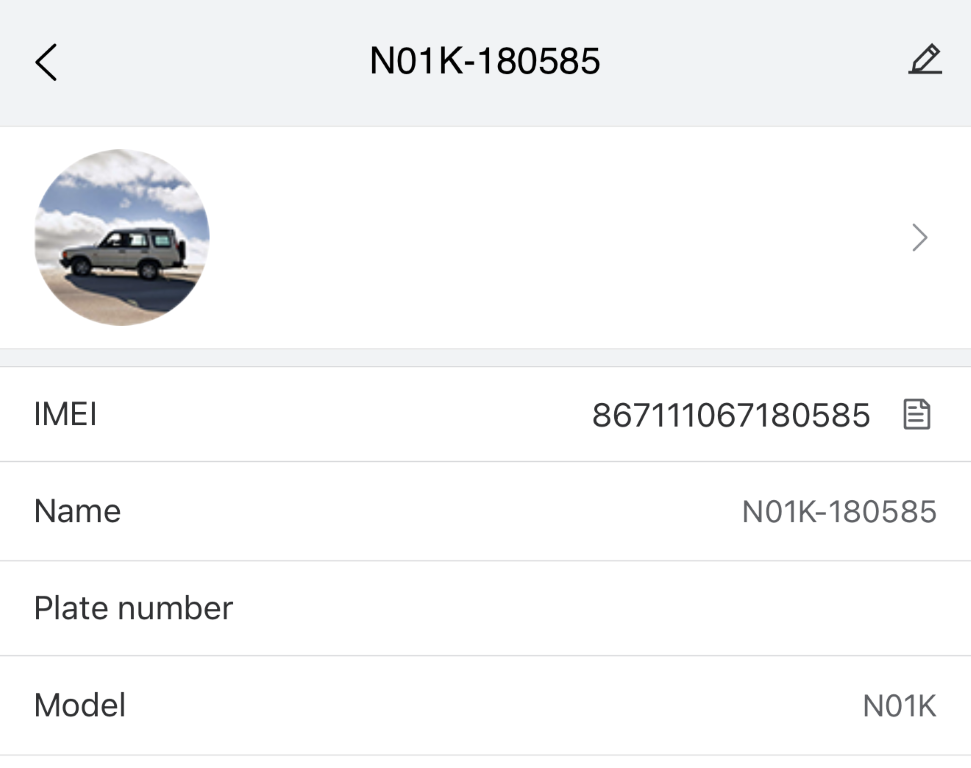
Tap My, tap your vehicle, then Details. Edit the plate number and save.
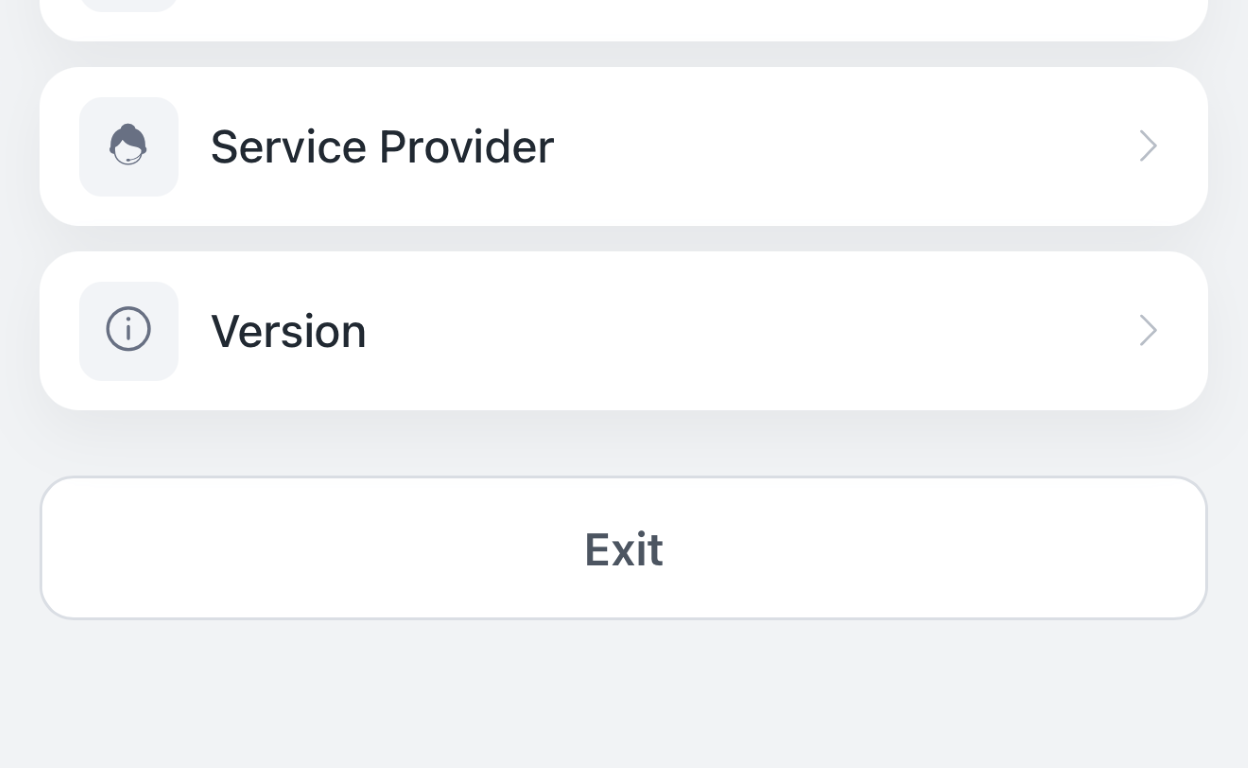
In the app, tap the My tab, then Exit. On the website, use the Exit link at the top right.
06 · Subscription, Warranty & Support

Don’t confront the thief. Your safety comes first. Open ProTrack to confirm the vehicle’s latest location, note the address, coordinates, speed and direction of travel, and contact Police immediately with those details. Then contact ProTrack Support if you need further help.

If the tracker loses external power, a power interruption notification may be generated if that alert is supported and enabled. If the tracker has a backup battery, it may keep working for a limited time, and the last reported location stays visible. If it then shows Offline, check the vehicle’s battery and wiring, or contact your dealer.
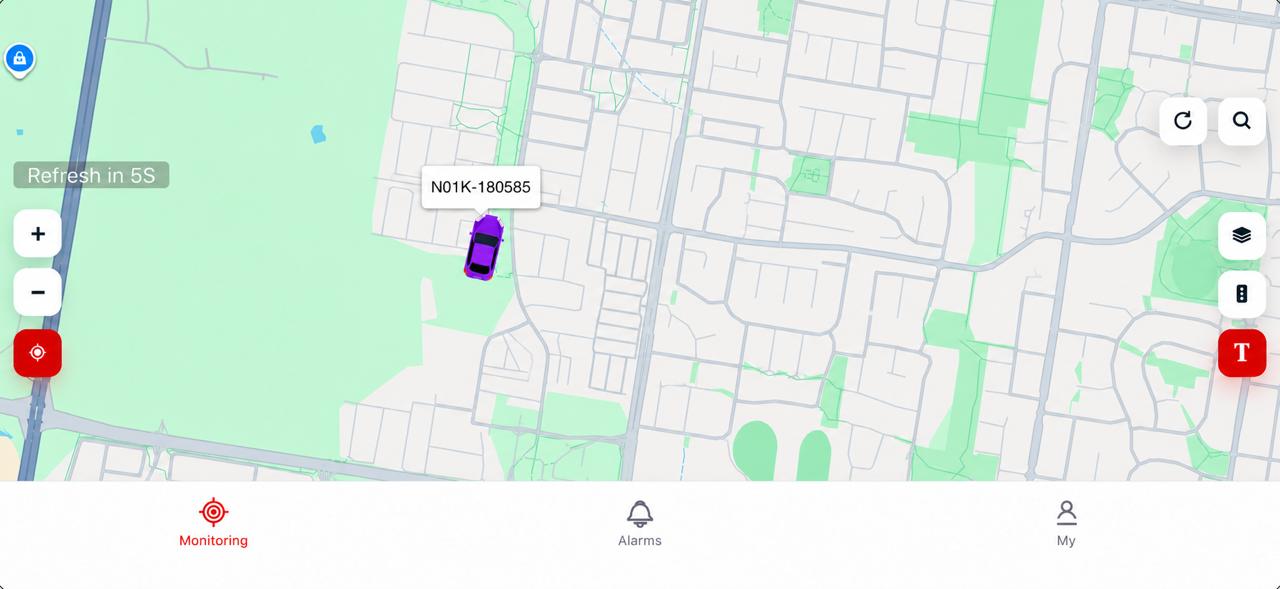
ProTrack needs an active subscription. When it expires, the vehicle shows as Expired (purple on the map) and live tracking, alerts and history playback are suspended until you renew. To avoid any interruption, contact ProTrack AU on 1800 733 809 or support@protrack.au to renew before it lapses.
Yes. Your ProTrack AU GPS tracker comes with an unlimited new car warranty and a nationwide replacement guarantee. For warranty claims, technical support or device replacement, contact ProTrack AU with your device IMEI number ready.
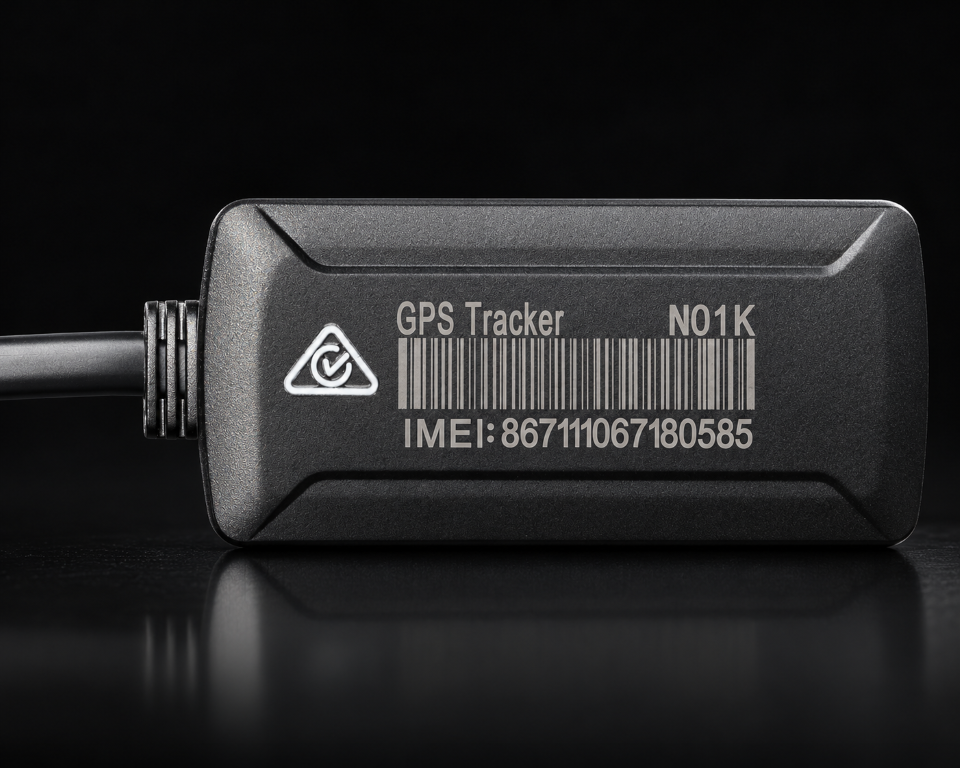
It’s printed on the tracker device and shown in the app under Device Details.
ProTrack AU collects and stores vehicle location data to provide the tracking service. It’s accessible to authorised users and service providers as needed to operate and support the service. ProTrack AU handles personal information in line with the Australian Privacy Act 1988 and the Australian Privacy Principles. For the full Privacy Policy, visit protrack.au or email support@protrack.au.

Call ProTrack Support on 1800 733 809 or email support@protrack.au.
Download the ProTrack brochure and official guides.
A one-page overview of ProTrack: live tracking, trip history, alerts, geofences and the app.
Download PDF · 1.3 MBLogging in, the map, live tracking, trip history, alerts and the app, on desktop and mobile.
Download PDF · 3.5 MBQuick answers about logging in, the map, live tracking, trip history, the app and your account.
Download PDF · 820 KBWhether you need technical assistance, help with your account or support with your ProTrack device, our team is here to help.